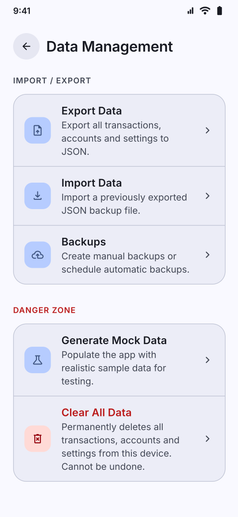
Take complete ownership of your personal finance data with versatile local import, export, and sandbox capabilities:
- Full Data Ownership: Your records belong exclusively to you, stored securely on your phone with zero vendor lock-in.
- Export Transaction Statements (History Tab):
- Generate filtered transaction statements directly from the History tab.
- Export in spreadsheet-ready CSV (for analysis in Excel, Google Sheets, or custom scripts) or beautifully formatted PDF (with monthly summaries, category totals, and debit/credit styling).
- Full Database Backups (Settings -> Data Management):
- Export Data: Create complete snapshots of your accounts, categories, tags, transactions, loans, investments, and recurring rules in structured JSON or CSV format.
- Import Data: Seamlessly restore previously exported backups or migrate from external expense tools with one tap.
- Sandbox Mock Data:
- Generate Mock Data: Populate Kuber with realistic mock accounts, categories, and test transactions to explore charts, heatmaps, and financial health scores without manually typing data.
- Clear Mock Data: Wipe test records cleanly at any time from the Danger Zone to begin logging your genuine finances.
- 100% Private and Offline: All statement generation, JSON serialization, and CSV parsing run locally on your phone without ever uploading files to external cloud servers.